Ever tried to listen to internet radio, then later noticed your browser getting random pop-ups or your phone suddenly “remembering” things you didn’t search? That’s not just annoying—it can be a sign your streaming path is leaking data, letting trackers build a profile, or exposing you to fake login pages.
Secure your listening setup by tightening three places: your router, your listening device, and your browser. If you do only one thing, do this first: block risky tracking in the browser and keep your router firmware updated in 2026. It’s simple, and it stops a lot of the common problems.
Why “safe internet radio” is mostly about setup (not luck)
Internet radio is usually “just audio,” but the apps and web pages around it still run scripts, load ads, and sometimes ask for permissions. Your browser and device are the part that decides which scripts you run and what data gets sent.
Security here doesn’t mean you need to be paranoid. It means you reduce the chance that a sketchy stream page, a compromised ad network, or a weak router turns your listening habit into an attack path.
Router settings that stop most home network radio risks
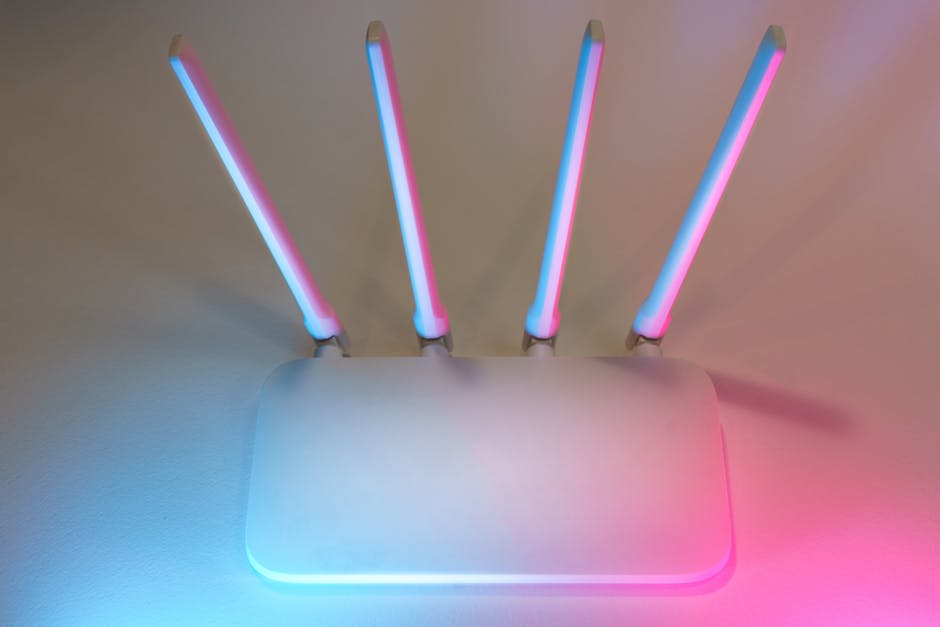
Your router is the gatekeeper for every device in your home. If it’s out of date or misconfigured, even a good browser can’t fully protect you.
As of 2026, the “best practice” is clear: update firmware, lock down admin access, and separate risky devices from your main stuff.
Update router firmware and fix the two biggest mistakes
First, update your router firmware. Many real-world issues happen because routers keep old software that never gets security patches. I’ve seen this when people keep the same ISP router for years and never check the update page.
Second, stop exposing the router’s admin page to the whole internet. Turn off remote administration if your router has it, or restrict it to a VPN-only workflow.
- Goal: only you can log into the router.
- How: Settings > Admin / Management > Remote Admin = Off.
Use a guest network for smart speakers, TV apps, and “radio boxes”
Guest Wi‑Fi is not just for guests. Use it for any device that streams audio in your home but doesn’t need access to your personal files.
This matters because some internet radio players (especially older smart TVs) have weaker security than your phone. Putting them on a guest network keeps them from reaching your laptop or NAS.
- Tip: Name your networks clearly, like “Home” and “Listening-Guest.”
- Result: device-to-device access gets blocked.
Turn on WPA3 (or WPA2‑AES) and disable old Wi‑Fi modes
Wi‑Fi encryption is your first wall against neighbors who try to join or intercept traffic. WPA3 is the strongest option in most 2026 routers; if WPA3 isn’t available, choose WPA2‑AES.
Avoid mixed or “WPA/WPA2” modes unless you have no choice. Mixed modes can force weaker settings for compatibility.
| Router security choice | What it means | What to pick |
|---|---|---|
| WPA3 | Modern encryption for Wi‑Fi | Best for 2026 |
| WPA2‑AES | Old, but still safe when configured right | Good fallback |
| WEP / WPA (TKIP) | Outdated and easy to break | Never use |
Check DNS settings and avoid “mystery DNS” providers
DNS is like a phonebook for websites. Some routers let you pick a DNS provider, and some ISP settings push you to random choices.
For internet radio, you don’t need fancy stuff. You need stable DNS and a trustworthy provider. If your router allows it, use a reputable DNS service and keep DNS over HTTPS (DoH) settings aligned with your browser preferences.
Important: If you use parental controls or security software that changes DNS, make sure you know what it’s doing. Conflicts can break streams.
Device settings: lock down the phone, laptop, TV, and car screen
After your router, the next big win is device hardening. This is where you stop shady web pages from getting extra permissions and stop attackers from signing in to accounts.
I focus on two things: updates and permissions. If those are right, most “internet radio security drama” goes away.
Keep your OS and apps updated (this is real security)
Updates fix security bugs, not just new features. For listening setups, update your phone/tablet, your browser, and any radio apps you use.
Quick rule I follow: if there’s an update prompt and you’re not on a risky network, install it the same day. In 2026, attackers move fast, and waiting weeks is a free gift.
Turn on full-disk encryption and screen lock
If your phone or laptop gets stolen, encryption is what keeps the data safe. Most modern devices have this on by default, but it’s worth checking.
- Phone: turn on screen lock and encryption (usually part of the lock settings).
- Laptop: enable BitLocker (Windows) or FileVault (macOS) if available.
Use app permissions like a grown-up: “only while using”
Streaming radio shouldn’t need your contacts or full location history. If a radio website asks for location, camera, or contacts, that’s a red flag for privacy.
Set permissions to “While using” or “Ask every time.” Deny anything you don’t need.
- Location: usually unnecessary for audio.
- Microphone: only if you’re doing voice features.
- Notifications: allow only on trusted sites.
Make sure password sign-in is real, not “remembered guesses”
Fake login pages are common in scams. If you’re using a browser that saves passwords, it’s safer to only save passwords for verified sites and use strong unique passwords.
Also turn on multi-factor authentication (MFA) for email first. That’s the account that resets everything else.
Browser settings that make internet radio safer instantly

Your browser is where most protection happens, because it controls scripts, tracking, and site permissions. If you do one browser cleanup, do it here.
I’ve watched users get tricked by “notification spam” and fake stream links. Browser rules stop a lot of that.
Turn on tracking protection and block third‑party cookies
Tracking protection reduces how many sites can build a profile of you. Third‑party cookies are often the backbone of “web tracking,” especially on ad-heavy radio pages.
- Enable “Block third‑party cookies.”
- Use built-in tracking protection in your browser (Safari, Firefox, Chrome settings differ).
- Clear cookies for sites you don’t trust.
What people get wrong: they only install an ad blocker. Ads aren’t the only issue—tracking scripts can still run. Use both: ad/tracker blocking and cookie controls.
Stop “Allow notifications” prompts from random radio pages
Notification spam is one of the most common annoyances on streaming sites. If you keep clicking “Allow,” you hand the site the ability to push pop-ups.
In your browser, remove permissions for sites you don’t recognize. In 2026, the best move is to allow notifications only for a few trusted services you actually use.
Use HTTPS and verify the domain before you log in
HTTPS means your connection is encrypted. But encryption alone doesn’t mean the website is real. Always check the domain name carefully before you enter credentials.
Scammers often create domains that look close to the real one, using odd characters or extra words.
- Use the address bar to confirm the exact domain.
- Don’t follow “radio player” links from random ad pop-ups.
- Bookmark trusted pages instead of searching each time.
Install security extensions with a job (not a pile)
You don’t need 12 extensions. You need a small set with clear purpose: tracking control, script blocking, and safe browsing.
Here’s a practical setup I recommend:
- Ad/tracker blocker (built-in or extension).
- Script control if you’re comfortable (optional, but powerful).
- Password manager if you don’t already use one.
If a blocker breaks a stream page, adjust the site permissions for that specific domain instead of turning protection off everywhere.
Network hygiene for safer internet radio sessions (quick habits)
Small habits add up. The easiest way to stay safe is to make your listening behavior boring for attackers.
These habits take less than 2 minutes to set up, and you feel the benefit right away.
Use a separate listening profile or browser user for radio
One idea I like: create a separate browser profile just for radio and streaming. It keeps cookies, extensions, and saved sessions from mixing with your daily shopping or banking.
When a radio site misbehaves, you can reset that profile without touching your main browser data.
Avoid “free player” downloads from random sites
Free audio “players” you download from unknown pages often hide unwanted software. In 2026, most streaming works in the browser already, so downloads are usually unnecessary.
If you must use a desktop player, pick one with a clear publisher and a long history. Stick to official app stores when possible.
Don’t listen on public Wi‑Fi without extra protection
Public Wi‑Fi is risky because attackers can try to intercept traffic or set up fake access points. If you have to listen while outside, use a reputable VPN.
Limitation: VPN won’t stop malicious sites. It helps with network-level snooping, not scam websites.
People Also Ask: quick answers for common internet radio security questions
Is there any way to stop internet radio from tracking me?
Yes. Use browser tracking protection, block third‑party cookies, and restrict site permissions like notifications and location. Also consider using a separate browser profile for radio so cookies don’t build up across your whole life.
Tracking can still happen on the site itself, but you’ll cut most third‑party profiling fast.
Can router settings really affect what I hear online?
They can. Bad DNS, strict firewall rules, or broken IPv6 settings can stop streams from loading or cause frequent buffering. The safety move (locking admin access and enabling strong Wi‑Fi security) shouldn’t break radio, but unstable network features can.
If a station won’t play after router changes, test: switch to your phone’s hotspot once, then revert the router setting step-by-step.
Should I use a VPN for internet radio in 2026?
If you’re on public Wi‑Fi, yes—that’s the cleanest reason. If you’re only at home on a secure network, a VPN is less urgent, because your router and device settings handle most of the risk.
Choose a trustworthy VPN provider and avoid “free VPNs” that fund themselves with ads or tracking.
What most people get wrong: “I blocked ads so I’m safe”
This is the biggest mistake I keep seeing. Ad blockers reduce some ads, but trackers and malicious scripts can still run through pages that don’t look dangerous.
A safer approach is to treat internet radio like a normal web browsing session: lock down cookies, control permissions, verify domains, and keep your router updated.
A safe way to find and listen to stations you trust
When you’re searching for stations, you’re also searching for links. That’s where scammers hide, using fake stream pages that copy the look of real radio.
I recommend starting from trusted station pages, saving bookmarks, and typing the domain directly in your browser when possible.
For example, if you’re looking for Lithuanian stations online, you can start with radijas.eu as a helpful place to browse and find the stream pages you actually want. Bookmark the final station page so you don’t re-enter through search ads later.
Build your “secure listening setup” in 25 minutes
If you want a clear checklist, do this in one sitting. It’s long, but the steps are simple.
- Update your router firmware (2–5 minutes).
- Set Wi‑Fi to WPA3 or WPA2‑AES (5 minutes).
- Turn off remote router admin (2 minutes).
- Create a guest network for your smart TV/streaming device (5 minutes).
- Update your phone/laptop and browser (5 minutes).
- Enable third‑party cookie blocking and tracking protection (3 minutes).
- Review site permissions and block notification spam (3 minutes).
After that, listen for a day. If you notice buffering changes, you’ll know it’s tied to your recent network settings and can adjust just that piece.
Conclusion: safer internet radio comes from control, not guesswork
Secure your listening setup by focusing on the three levers that matter most: router firmware and Wi‑Fi settings, device updates and permissions, and browser tracking/cookie controls. That’s how you reduce both account risks and privacy leaks.
If you want one takeaway to act on today: update your router and tighten browser tracking protection first, then keep your radio devices on a guest network. Do that, and your daily radio habit stays relaxing instead of risky.
Related reading on our blog: If you’re also trying to spot scams and fake pages, check our phishing link spotting guide and our ad and tracking threat intelligence breakdown. For deeper background on why these tricks keep evolving, our browser script abuse explainer is a good next stop.
And if your listening routine includes finding new stations and keeping your browsing path cleaner, start with trusted directories like radijas.eu, then bookmark the exact pages you use. That small habit reduces the chance you’ll end up on a lookalike or scam stream when you’re in a hurry.